Workspaces — Folder-Based Routing
Map a project folder to the exact toolset it should get. McpMux routes each workspace to its own Space and FeatureSet automatically, so every AI app sees the right tools for the folder it has open.
Workspaces map a project folder to the exact toolset it should get. When an AI app opens that folder, McpMux hands it the Space and FeatureSet you mapped — and nothing else.
Why Workspaces
Spaces isolate contexts; Workspaces decide which context a session actually gets — automatically, per folder.
Your AI app (Cursor, VS Code, Windsurf, Claude Code) tells McpMux which folder it's working in — its MCP root. McpMux uses that to route each folder to its own toolset:
- Open your backend repo and the AI sees your database, cloud, and deploy tools.
- Open a docs folder and it sees only search and filesystem.
- Open an untrusted project and it gets a read-only set — or nothing.
Map a folder once and every future session from that exact path resolves automatically. Matching is per-folder and exact, so nothing leaks across projects.
How a request resolves
When an AI app makes a request, McpMux resolves the toolset in order:
- The app reports its workspace root (the folder it has open).
- McpMux looks for a Workspace mapping for that exact path.
- The mapping points at a Space (which servers + credentials) and a FeatureSet (which tools, prompts, and resources from those servers).
- The FeatureSet's included features are the effective toolset the session resolves to.
Because routing is driven by the reported folder, it is decided per session, not per app — the same app gets different tools depending on which project it has open.
Creating a mapping
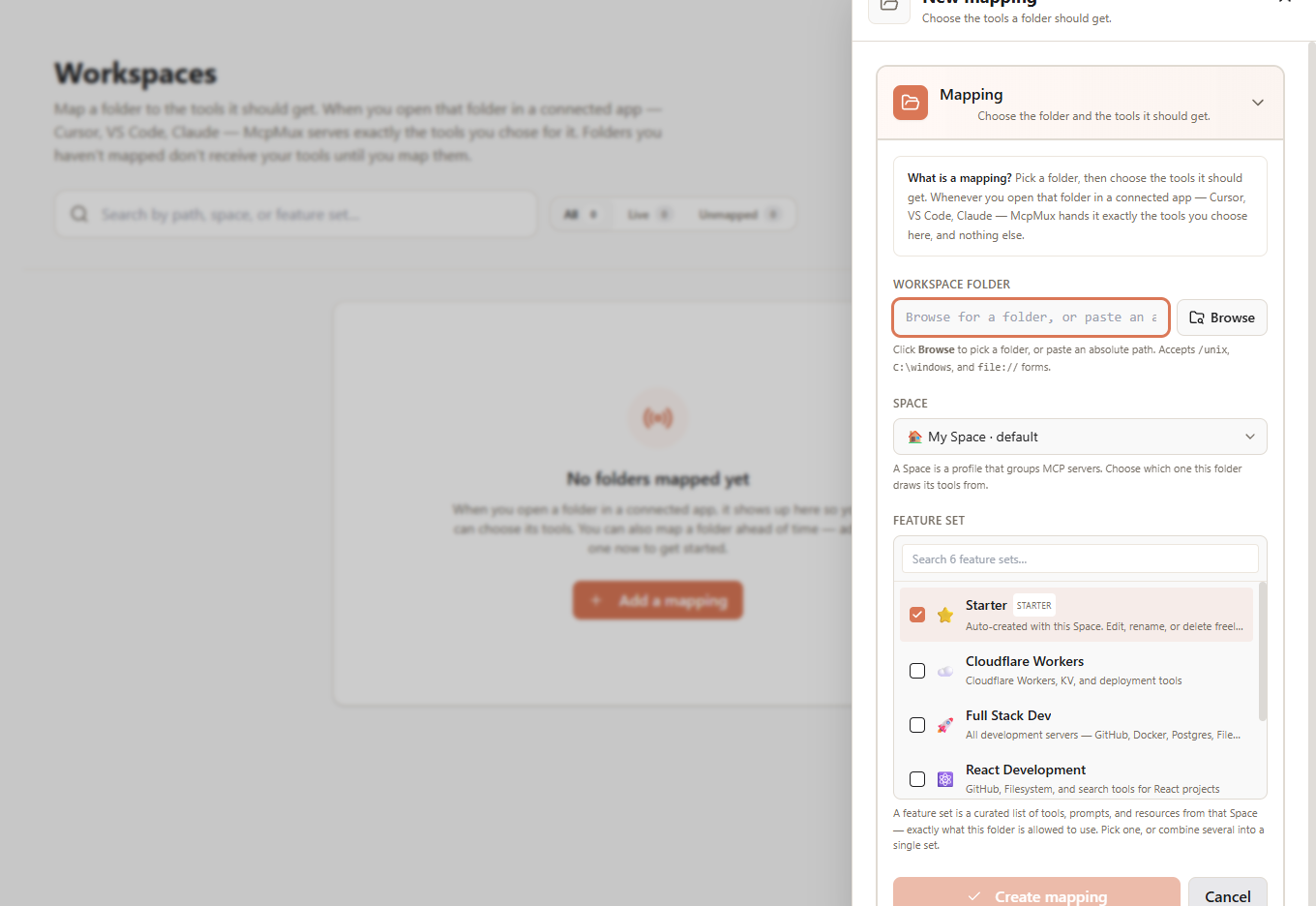
Open the Mapping tab and click New mapping:
- Workspace folder — browse for a folder or paste an absolute path. Accepts
/unix,C:\windows, andfile://forms. - Space — the profile whose servers and credentials this folder draws from.
- FeatureSet — the curated bundle of tools this folder is allowed to use. Pick one, or combine several into a single effective set.
Folders you haven't mapped fall back to the default Space's Starter FeatureSet, so they work out of the box — map one only when it should see something different. When an app opens an unmapped folder, McpMux offers to map it on the spot.
Missing the FeatureSet you need? Click New feature set next to the picker — it opens FeatureSets on that Space with the create dialog up, and Back to Mapping returns you to the mapping you were editing.
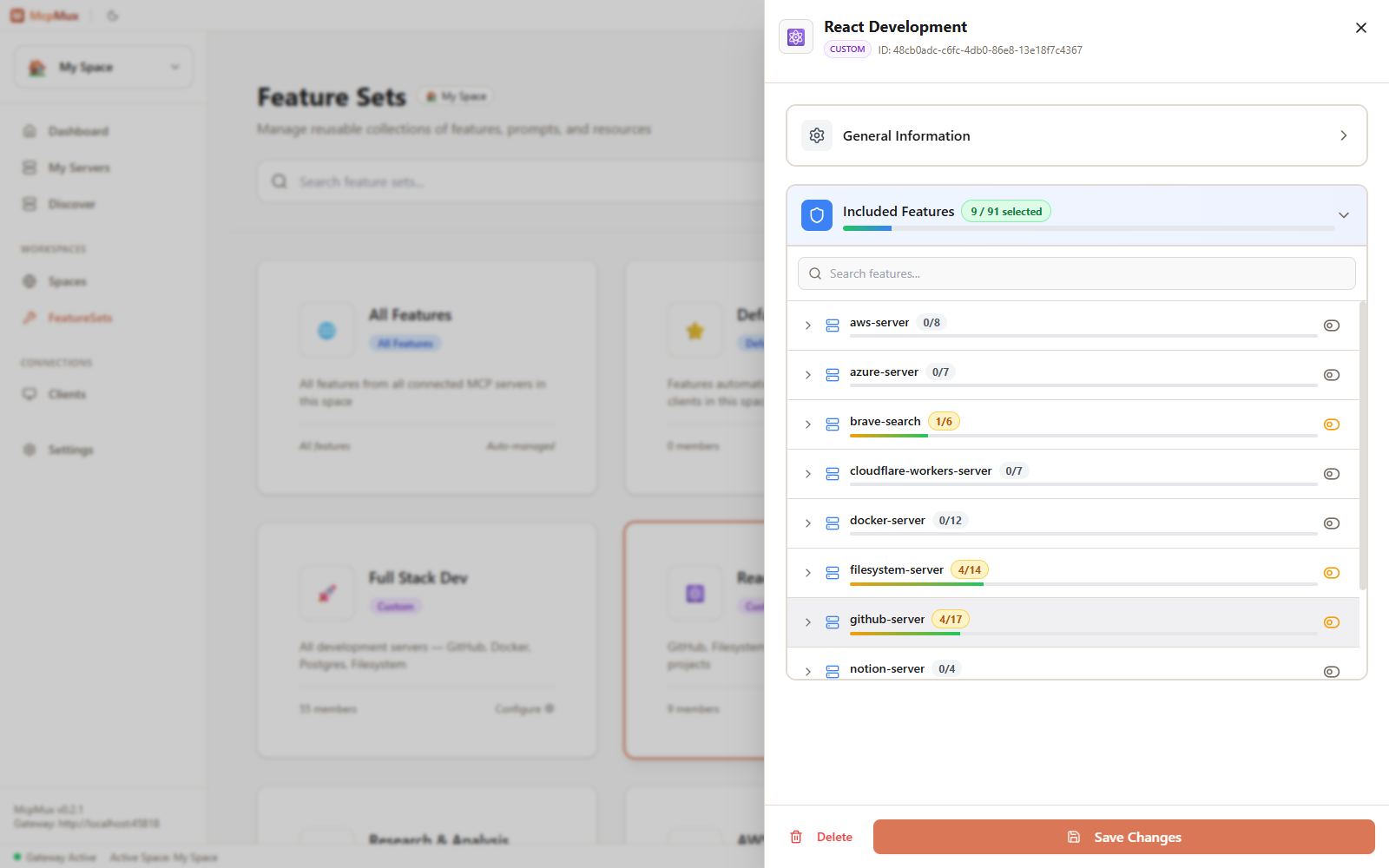
The FeatureSet you pick is the exact toolset the folder resolves to — choose which tools, prompts, and resources from each server it's allowed to use:
Mapping a client instead of a folder
Headless, remote, and CI clients don't open a folder. Register them under Clients → Register client with a name — McpMux issues an API key and maps the client to its Space's Starter set. Issue as many keys as you need (one per machine or job); every key signs in as that client, so they all get the same tools:
API keys → client → FeatureSets
To change what a client gets, open it in Clients and click Configure mapping, or pick it by name under New mapping → Client / ID. A client locked to a Space can only be mapped within that Space.
Let the AI map it for you
You don't have to open the Mapping tab at all. With Tool Optimization, an assistant can compose a FeatureSet and pin the current folder to it from chat:
"@mux build a minimal toolset for this Next.js repo and pin it to this folder."
The pin is a Workspace mapping — it sticks for every future session from that path. Changes are gated behind a one-click approval that names the exact Space.
Next steps
- Spaces — the isolated contexts a Workspace routes to
- FeatureSets — the curated toolsets a Workspace grants
- Tool Optimization — let the AI map folders for itself
- Clients — how connected apps report the folder that drives routing
Spaces — Isolated Workspaces
Spaces let you organize MCP servers into isolated environments with separate credentials. Keep work, personal, and client projects completely separated in McpMux.
FeatureSets — Permission Control
FeatureSets control which MCP tools, resources, and prompts each AI client can access in McpMux. Create role-based permissions, domain bundles, or read-only views.