Clients — Connected AI Apps
Connect Cursor, Claude Desktop, VS Code, Windsurf, and other AI clients to McpMux. Approve them with one click, and let workspace-driven routing decide each app's tools by the folder it has open.
Clients are the AI applications that connect to McpMux's gateway to access MCP tools, resources, and prompts. McpMux registers each app with a one-click approval, then routes its tools by the folder it has open — not by the app itself.
Supported clients
McpMux works with any MCP-compatible client, including:
| Client | Type | Connection |
|---|---|---|
| Cursor | IDE | Streamable HTTP |
| Claude Desktop | Desktop App | Streamable HTTP |
| Claude Code | CLI | Streamable HTTP |
| VS Code (Copilot) | IDE | Streamable HTTP |
| ChatGPT Desktop | Desktop App | Streamable HTTP |
| Windsurf | IDE | Streamable HTTP |
| JetBrains IDEs | IDE | Streamable HTTP |
| Zed | Editor | Streamable HTTP |
| Gemini CLI | CLI | Streamable HTTP |
All clients connect to the same endpoint: http://localhost:45818/mcp
Connecting and approval
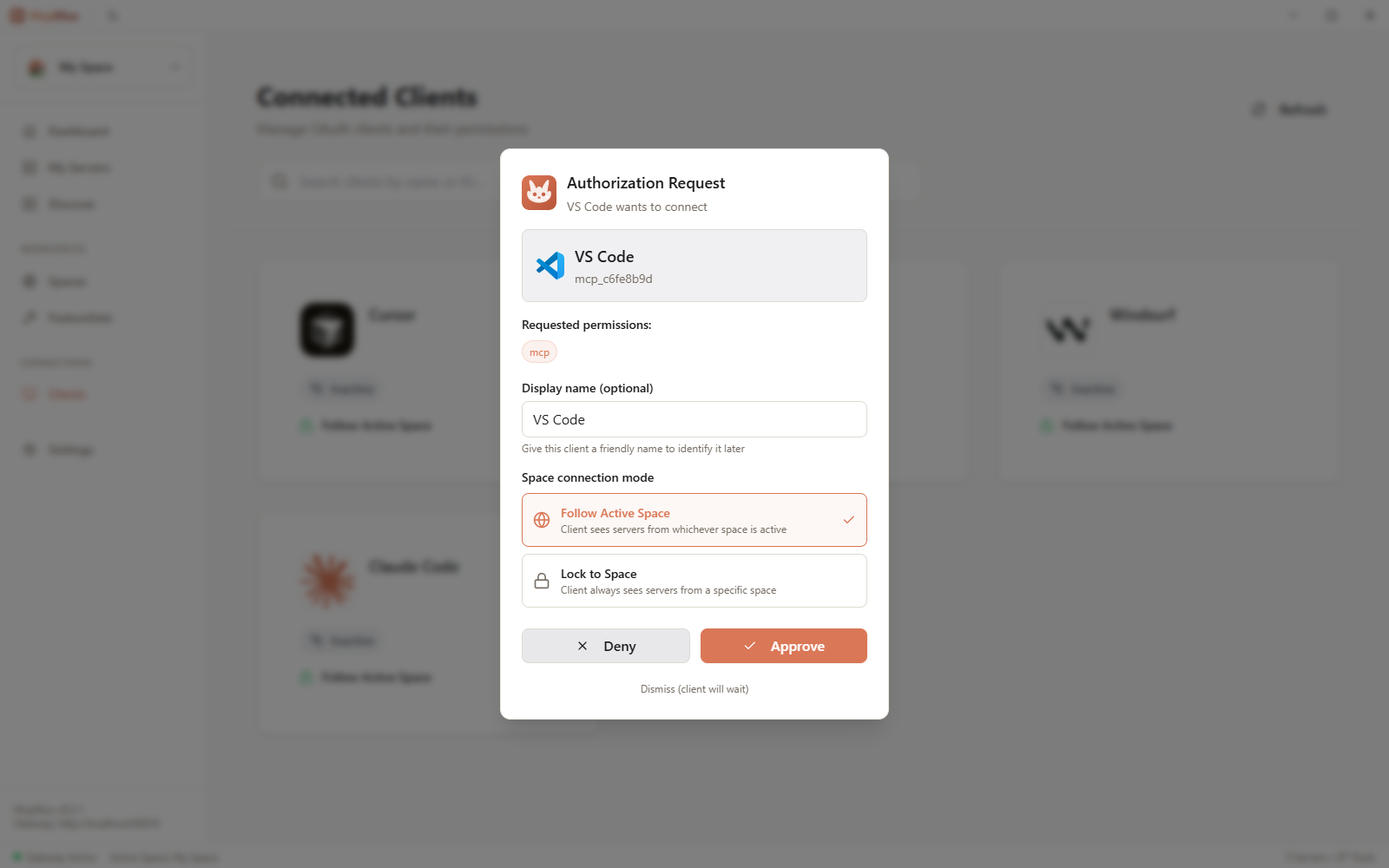
When a new client connects to the gateway, McpMux prompts you to approve it with one click. Approving registers the app and completes an OAuth 2.1 + PKCE handshake; its access key is stored in your OS keychain. (VS Code and Cursor can be connected in one click from the Home dashboard; other clients paste the gateway URL — see Getting Started.)
How routing works — workspace-driven
The tools an app sees are decided by the folder it reports (its MCP workspace root), resolved through a Workspace mapping — not configured per app. This means:
- Open your backend repo in any IDE and it sees your database and deploy tools; open a docs folder and it sees only search and filesystem.
- Two different apps (say Cursor and VS Code) opening the same folder get the same tools — routing follows the folder, not the app's identity.
- A session with no reported folder falls through to the active Space's FeatureSet.
To control an app's tools, map its folder in the Mapping tab (or let the AI do it with Tool Optimization) rather than configuring the app itself.
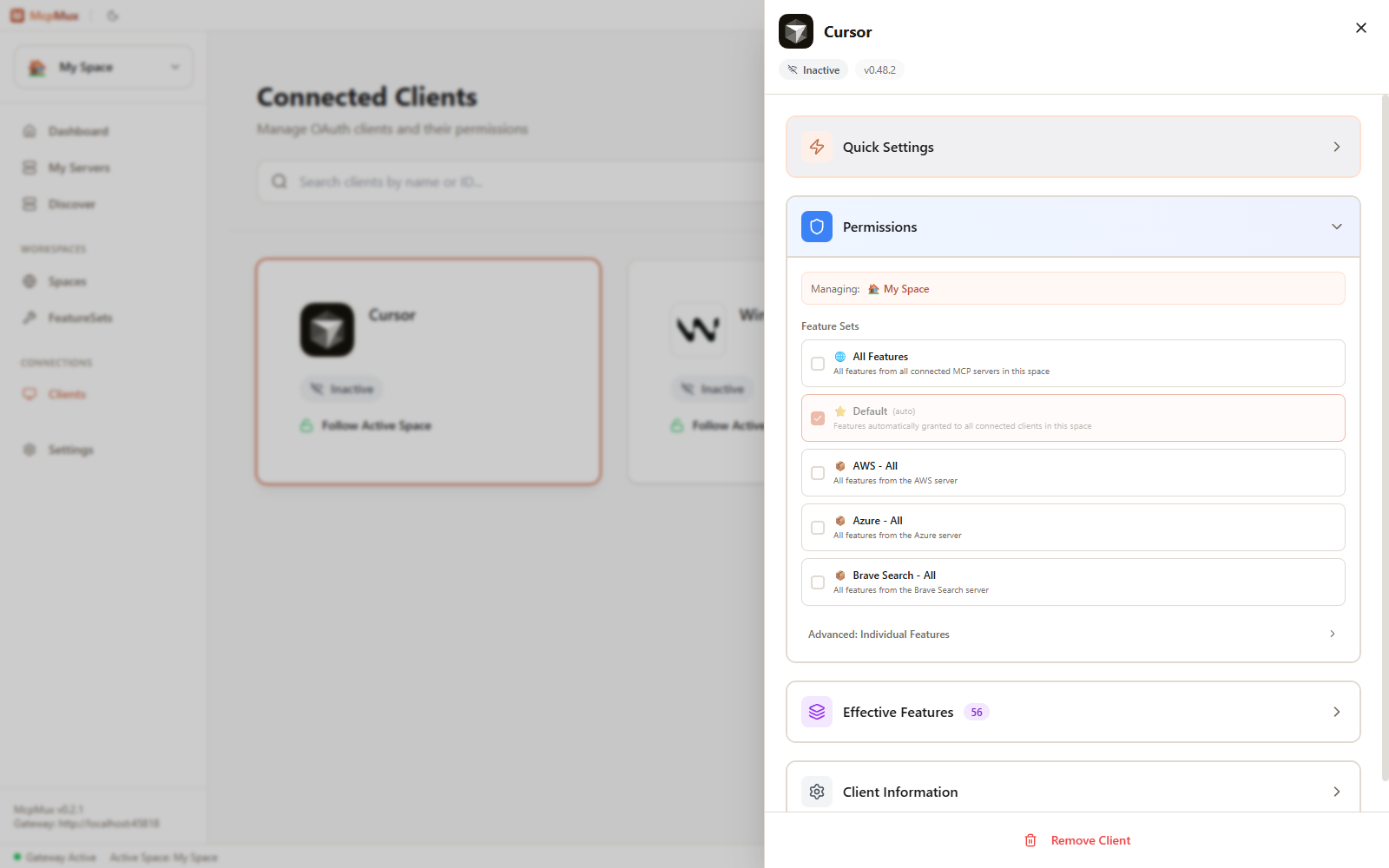
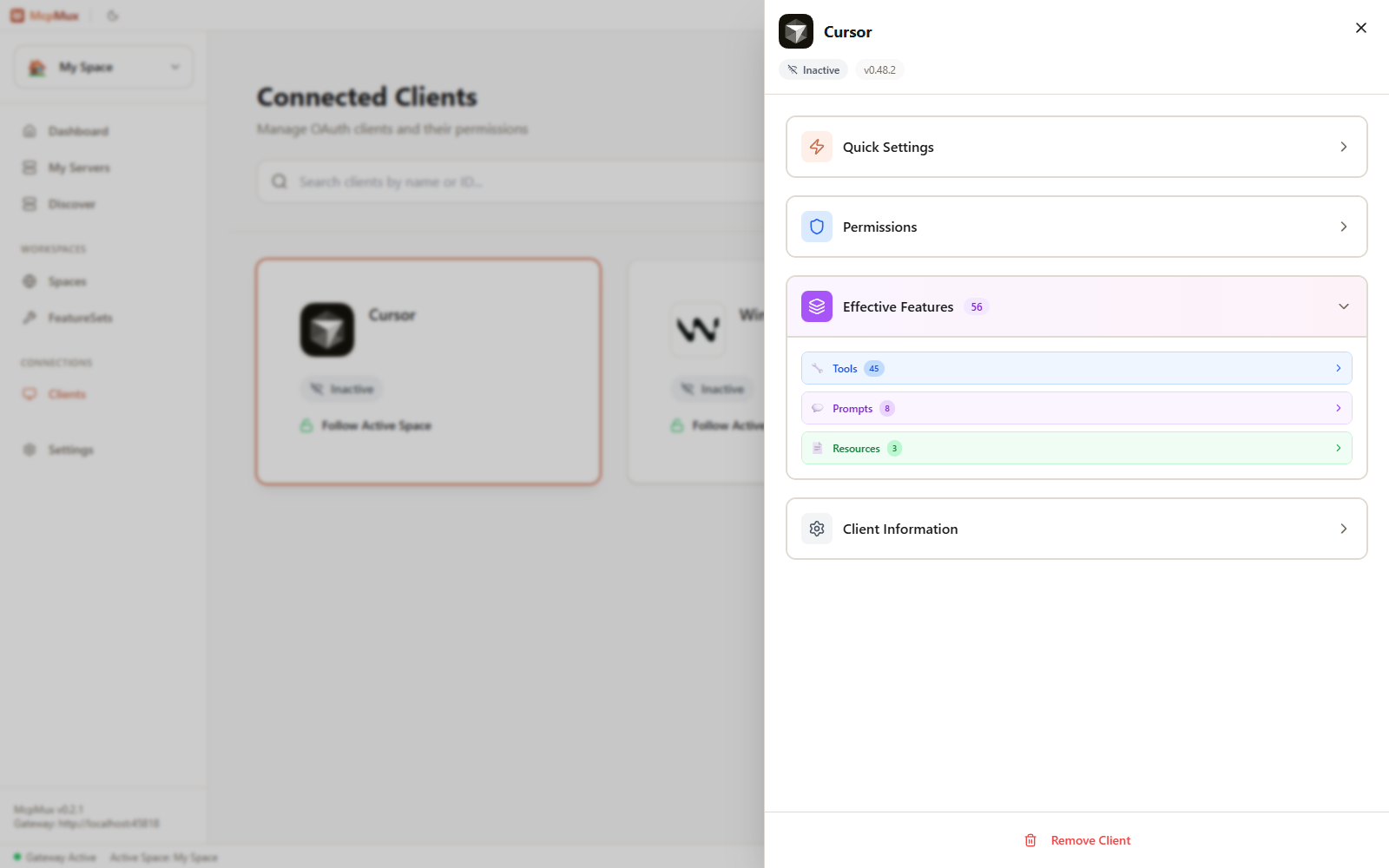
Open any app to see how it's currently routed and exactly which tools, prompts, and resources resolve for it.
Access keys
Each client authenticates with McpMux using an access key. Access keys are:
- Issued automatically through the OAuth approval when a client registers
- Stored encrypted in the OS keychain
- Unique per client
- Revocable at any time
API-key clients
Headless, remote, and CI clients can't complete a browser approval. Click Register client on the Clients page, give the client a name, and McpMux issues an API key (shown once; only its hash is stored). The client sends it as a Bearer token.
- One client, many keys — issue a labelled key per machine or job from the client's panel; revoke a leaked one without touching the others.
- Routing by client — every key signs in as the client, so they all get the client's mapping: API keys → client → FeatureSets. New clients start on their Space's Starter set; click Configure mapping to choose other FeatureSets.
- Lock to a Space (optional) — a locked client can only ever reach that Space, even with a leaked key.
Managing connected apps
The Clients page lists every app connected to your gateway by name:
- Each app's name, type, and last-seen status
- For API-key clients, the FeatureSets their mapping gives them
- A Configure mapping shortcut to the Mapping tab
From there you can rename an app, manage its API keys, or revoke it — revoking removes its access so it can no longer make requests through the gateway.
Next steps
- Workspaces — map each folder to the toolset it should get
- FeatureSets — build the tool bundles a folder resolves to
- Tool Optimization — let an app curate its own toolset from chat
- Gateway — how client requests are authenticated and routed
FeatureSets — Permission Control
FeatureSets control which MCP tools, resources, and prompts each AI client can access in McpMux. Create role-based permissions, domain bundles, or read-only views.
Server Management
Install, configure, and manage MCP servers in McpMux. Supports stdio and HTTP transports with encrypted credential storage, environment variable overrides, and OAuth authentication.