Getting Started with McpMux
Download McpMux, install an MCP server, connect Cursor/Claude/VS Code, approve the connection, route each folder to the right tools, and let the AI optimize its own toolset. Full step-by-step setup.
Get McpMux running, connect your first AI client, and dial in exactly the tools it sees — in a few minutes.
Prerequisites
- Operating System: Windows 10+, macOS 12+, or Linux (Ubuntu 20.04+, Fedora 38+)
- AI Client: At least one MCP-compatible client installed (Cursor, Claude Desktop, VS Code, Windsurf, …)
Step 1: Download and install
Download McpMux for your platform from the download page.
- Windows: run the installer (
.msior.exe) - macOS: open the
.dmgand drag McpMux to Applications - Linux: install via
.deb,.rpm, or.AppImage
Linux: window crashes or stays blank on startup? Some GPUs (often ones newer than the installed Mesa) can't start the graphics driver WebKitGTK needs. McpMux checks this once per driver update and, if the GPU fails, switches to Mesa's software renderer automatically — look for a
[Graphics]line in the log. To force that mode, launch withMCPMUX_SAFE_GRAPHICS=1; to skip the check,MCPMUX_SAFE_GRAPHICS=0. If the log says no EGL driver works at all, install Mesa (mesaon Arch,libegl-mesa0on Debian/Ubuntu).
McpMux runs in the system tray — look for its icon after launch. A default Space (an isolated environment for servers + credentials) is created for you; you can add more later for work/personal/per-client separation. See Spaces.
Step 2: Install a server from the registry
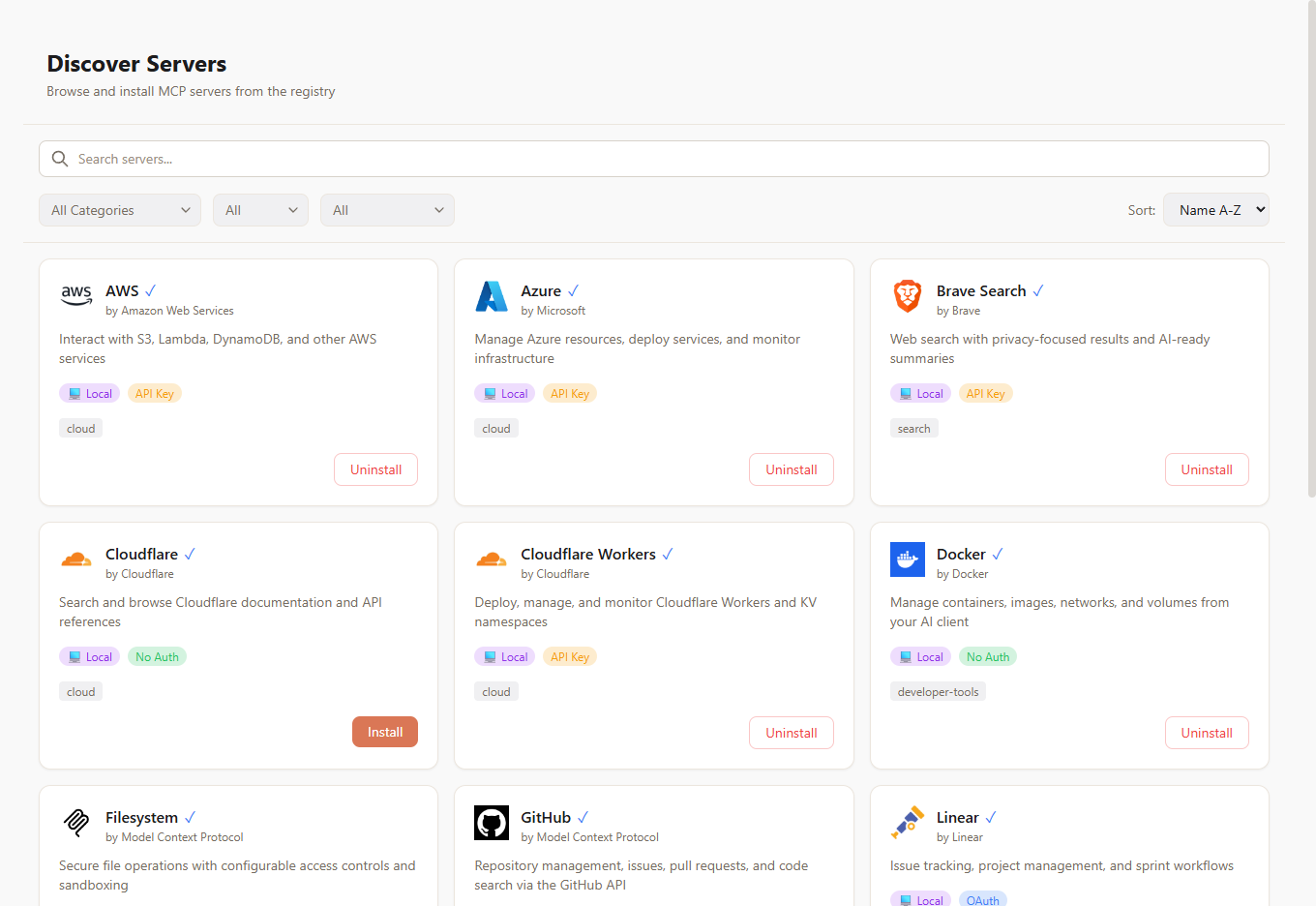
Open Discover in McpMux (or browse the registry on this site) and click Install on any of 100+ servers — GitHub, Filesystem, Postgres, Slack, Brave Search, and more. It's added to your active Space.
Step 3: Configure credentials
If a server needs authentication, a configuration dialog opens after installation. Fill in the fields and Save — the Save/Cancel buttons stay pinned at the bottom no matter how long the form is.
- Secrets are encrypted with AES-256-GCM and stored in your OS keychain — never in plain-text files.
- Use the obtain link (when provided) to jump straight to the service's token page.
See Server Management for all options.
Step 4: Start the gateway
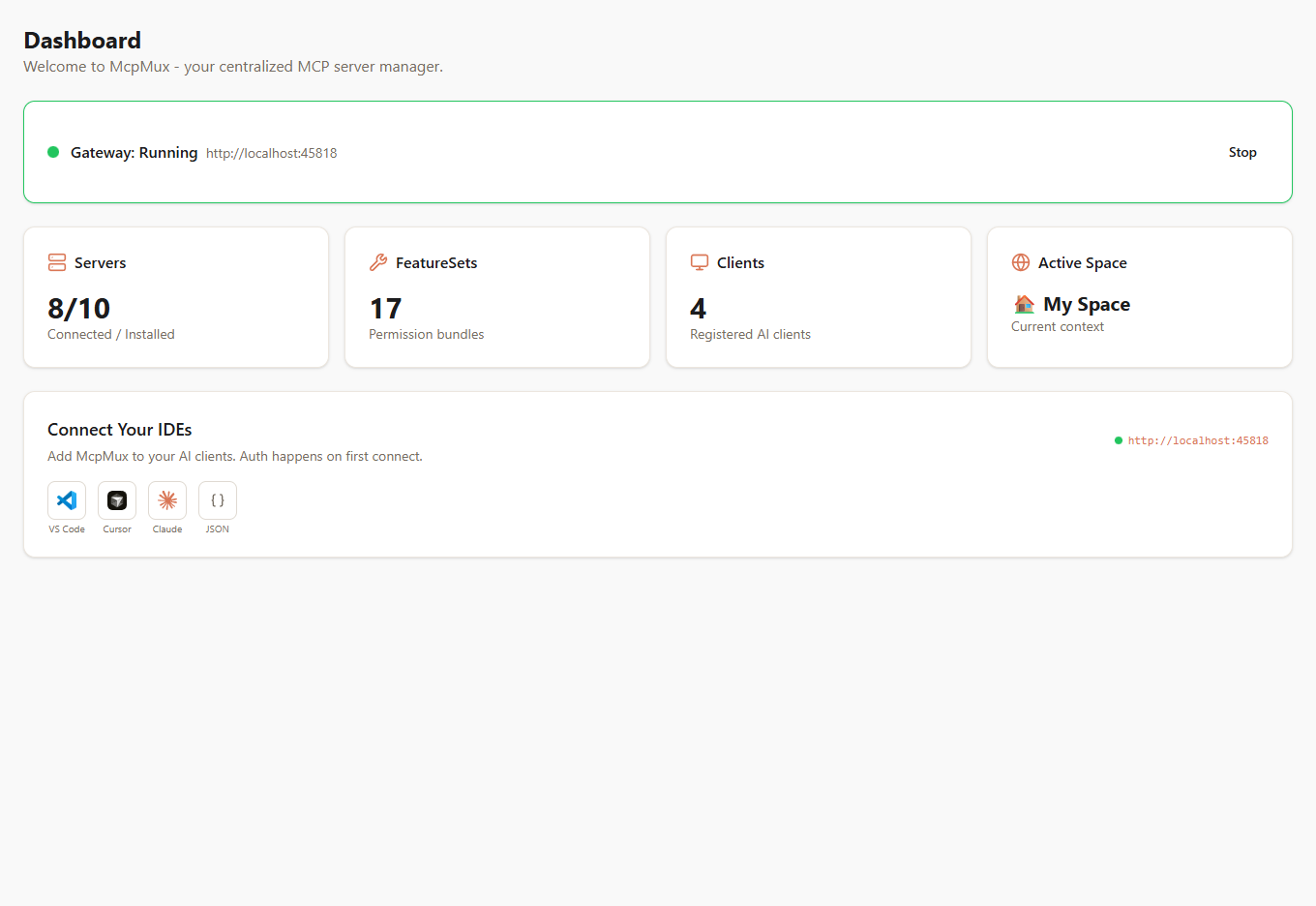
On the Home dashboard, start the gateway. It listens on localhost:45818 and connects your enabled servers (🟡 connecting → 🟢 connected → 🔴 error).
Step 5: Connect your AI client
VS Code and Cursor are one-click from the Home dashboard's Connect a client row. For everything else, point the client at the gateway endpoint:
{
  "mcpServers": {
    "mcpmux": {
      "url": "http://localhost:45818/mcp"
    }
  }
}- Cursor →
.cursor/mcp.json· Claude Desktop →claude_desktop_config.json· Windsurf → use"serverUrl"instead of"url" - VS Code (Copilot) →
.vscode/mcp.jsonunder a"servers"key
Step 6: Approve the connection
The first time a client connects, McpMux pops a one-click approval — "Allow VS Code to connect?". Approve it and the app is registered: it authenticates over OAuth 2.1 + PKCE and gets an access key stored in your OS keychain.
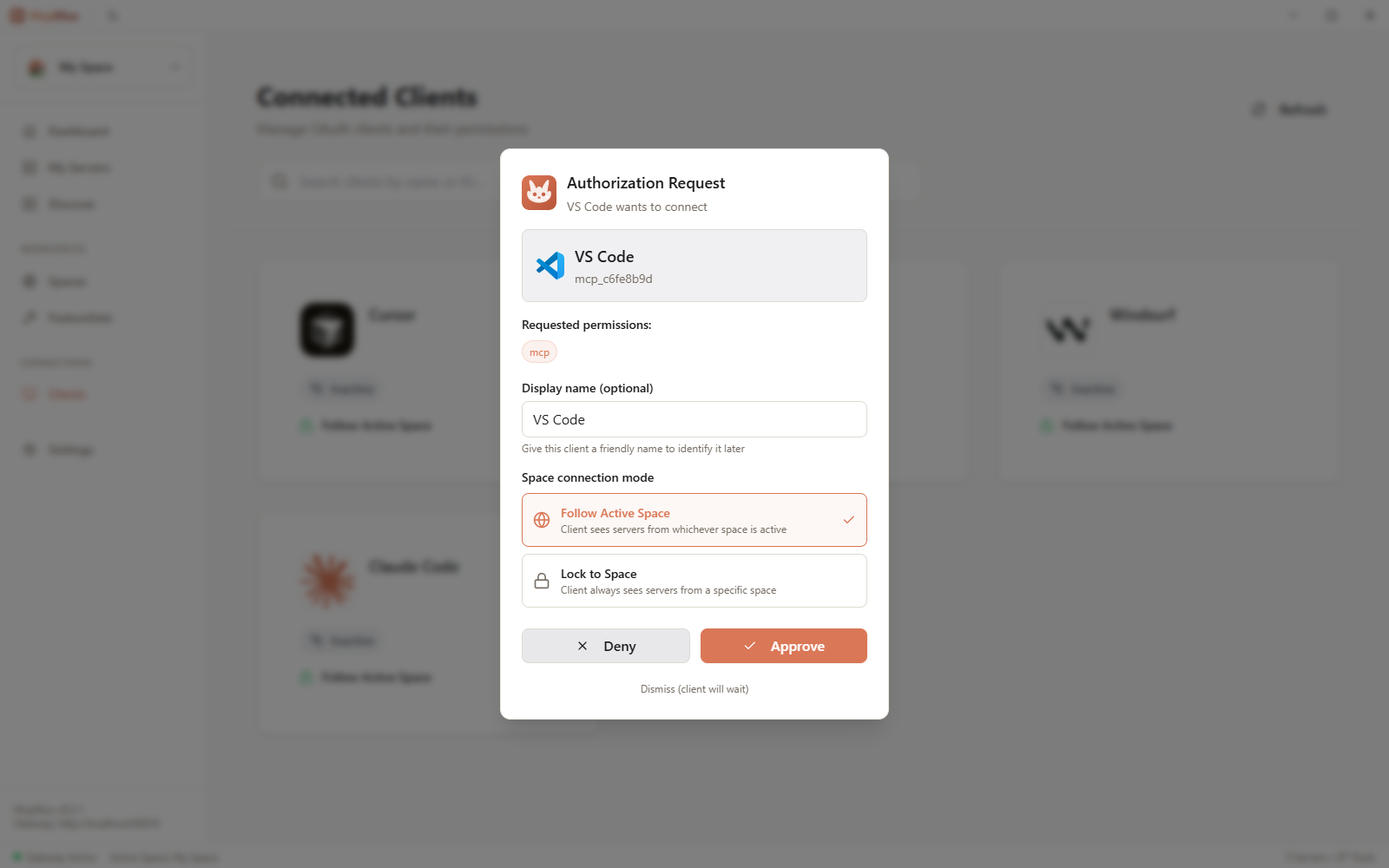
You can rename, inspect, or revoke any connected app later from the Apps page. See Clients.
Step 7: Route the folder to the right tools
This is the key idea: McpMux decides which tools a session gets from the folder the client has open (its workspace root) — not from the app itself. Two IDEs in the same folder see the same tools.
- By default, a session uses the active Space's FeatureSet.
- Map a folder to a specific Space + FeatureSet in the Workspaces tab: open your backend repo and the AI sees your database and deploy tools; open a docs folder and it sees only search and filesystem. Matching is per-folder and exact, so nothing leaks across projects.
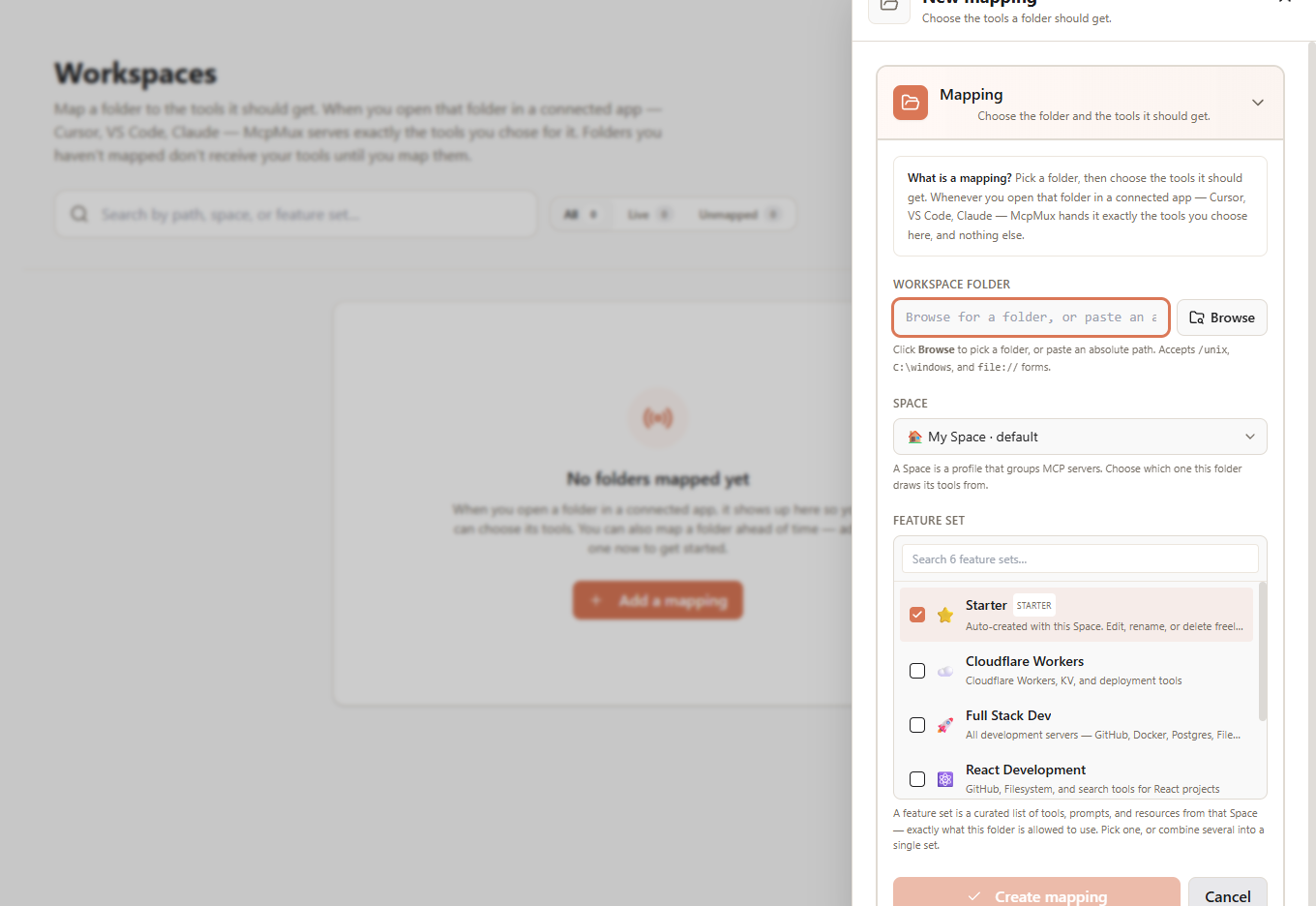
See Workspaces for routing and FeatureSets for building the tool bundles a folder resolves to.
Step 8: Let your AI curate its own toolset
Don't want to map folders by hand? In your AI client, start a request with @mux:
"@mux optimize this folder."
The assistant discovers what's available, composes a focused FeatureSet of just the tools it needs, and pins it to the folder — so every future session there resolves to exactly those tools. Read operations run silently; anything that changes your setup pops a one-click approval that names the exact Space.
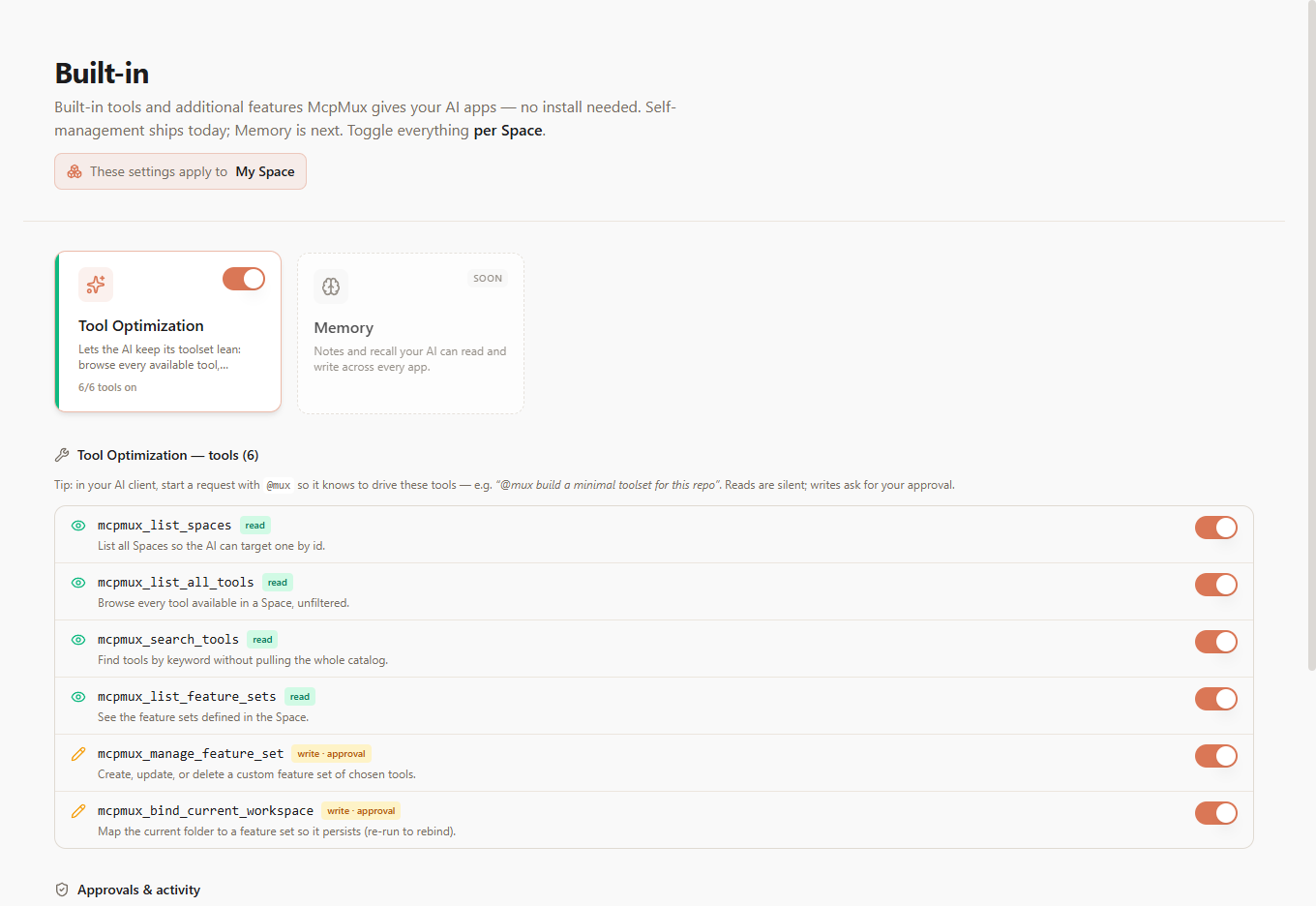
See Tool Optimization.
You're set
One gateway for every client, credentials encrypted in your keychain, the folder decides the tools, and the AI can tune its own toolset with @mux.
Next Steps
- Spaces — isolate work, personal, and client contexts
- Workspaces — route each folder to its own toolset
- FeatureSets — curate exactly which tools, prompts, and resources are exposed
- Tool Optimization — let the AI keep its toolset lean
- Clients — manage and revoke connected apps
- Security — how McpMux protects your credentials
What is McpMux
Configure MCP servers once, connect every AI client through a single endpoint. McpMux is a free desktop app and local gateway for MCP server management with encrypted credential storage.
Spaces — Isolated Workspaces
Spaces let you organize MCP servers into isolated environments with separate credentials. Keep work, personal, and client projects completely separated in McpMux.